


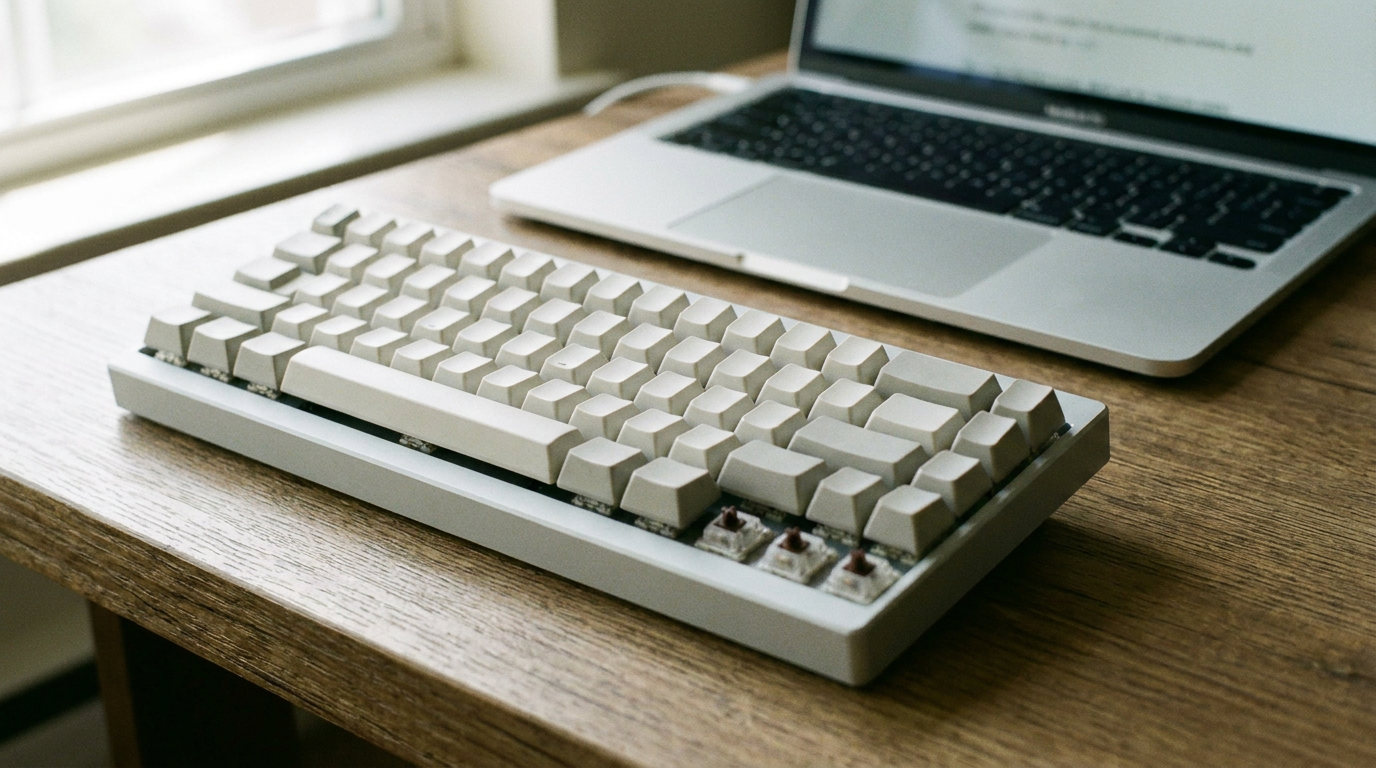
Any mechanical keyboard will type on a Mac. What decides whether you enjoy it is the modifier order to the left of the spacebar, and whether the firmware lets you change it. The switch inside matters least for Mac compatibility.
Keycap legends and the function row are cheap to correct after the fact. Modifier order will bother you every hour.
Modifier order is the real problem
Windows boards run Ctrl, Win, Alt. macOS expects Ctrl, Option, Command. Plug in a Windows board unchanged and Command sits where Option should be, so every shortcut your hands already know lands one key off.
The software fix takes a minute. Open System Settings, Keyboard, then Keyboard Shortcuts, then Modifier Keys, pick the board from the dropdown and swap Option with Command. macOS stores that per device, so your built-in keys stay untouched.
Firmware is the better fix if the keyboard travels. Anything running QMK or VIA, plus most boards with a physical Mac and Windows toggle, does the swap onboard. Same key positions on a Mac at home and on a Windows tower at the office, which helps if you still keep a machine on Windows 10 in rotation.
Keycaps you can read without translating
Mac keycap sets print the glyphs macOS actually shows in its menus: the Command loop, the Option symbol, the Control caret. Windows sets print Alt and a Windows logo, and you convert in your head every time a menu shows a shortcut.
You do not need a new board for that. A Mac modifier keycap kit in the same profile as your current caps covers it, provided the bottom row sizing matches.
The function row and media keys
On a stock Windows board, F1 through F12 send plain function keys, so brightness and volume do nothing on their own. Boards with Mac firmware map that row to media by default and hide the plain F keys behind Fn.
If your board has no Mac mode, macOS has a checkbox under Keyboard for the inverse behaviour, and remapping utilities cover whatever is left. Budget for small extras too, in the same way Apple moving accessories out of the box turned AirPods Max case options into their own line item.
Wired, dongle, or Bluetooth
Wired USB-C is the mode that always works, including at the login window and in macOS Recovery. Keep a cable if you ever need to hold a startup key combination.
Bluetooth is fine day to day, though pairing can drop after the Mac sleeps and it is unavailable before macOS loads. A 2.4 GHz dongle sits between the two, since the receiver enumerates over USB and the Mac treats it as a standard input device. If that layer is fuzzy, our walkthrough of the block diagram of a computer shows where the keyboard sits.
Check these before you pay
- A Mac layer or toggle in the firmware, not just a bundled app for Windows only
- Mac legends included in the box, or a keycap kit that fits your profile
- A detachable USB-C cable for recovery and login screen use
- Per device modifier remapping if you share the board across two computers
Get those four right and the switch choice becomes what it should be, a feel preference rather than a compatibility question.

